
PrintMagic For OS X
|
|
PrintMagic For OS X |
|
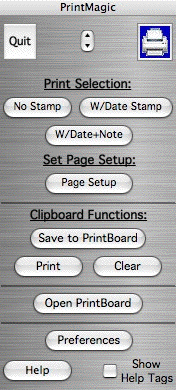
PrintMagic is very ease to use: just select the text or image you want to print (in virtually any application), and then click once on the PrintMagic button that performs your desired function.
PrintMagic also adds a universal and customizable keyboard shortcut (Option-Control-p is the default shortcut) to OS X that lets you print your selected text or images in any program, and you can use this keyboard shortcut even when using PrintMagic as a small Desktop Printer and when you make PrintMagic invisible!
Alternatively, you can drag-and-drop your text or image selection (or a clipping file) onto PrintMagic's small printer icon and PrintMagic instantly will print your data.
You also have the option of dragging and dropping your selected text or image onto the "Open PrintBoard" button to add your data to the closed PrintBoard.
When using drag-and-drop or a keyboard shortcut to print your selected data and when using drag-and-drop to save your selected data, you always have the option of adding a time-date stamp, a note, and a URL stamp to your data.
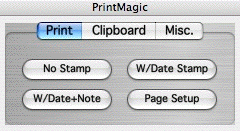
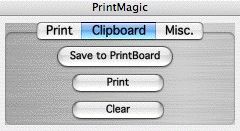
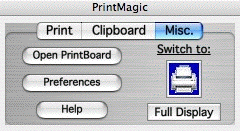
Drawer Display (Retracted)

You can drag-and drop your selected material onto the Drawer Display's small tab either to instantly print it or to instantly add it to the PrintBoard (even when the PrintBoard is closed). Moving your cursor to the bottom of the tab will open the entire drawer and display additional features.
You can use PrintMagic's preferences to change the default display mode, and at any time you can instantly change the current display mode by clicking on the appropriate button or by using PrintMagic's View menu.

PrintMagic's Desktop Printer automatically prints to the active printer in the Print dialog box -- with PrintMagic there's no need to configure a new Desktop Printer for each of your printers, and PrintMagic's Desktop Printer works with virtually all printers.
Command-click on the Desktop Printer to instantly print the contents of your Clipboard.
Drag-and-drop text or images onto the Desktop Printer to instantly print just the data you want printed, and you have the option of adding a URL stamp, a time-date stamp, and a note! You also can easily print clipping files by dropping them onto the Desktop Printer.
PrintMagic's universal keyboard shortcut (Option-Control-p) lets you print your selected text or images in any program, and you can use this keyboard shortcut even when using PrintMagic as a small Desktop Printer and when you make PrintMagic invisible!
You also have customizable keyboard shortcuts for saving the contents of the Clipboard to the closed PrintBoard and for toggling PrintMagic's visibility.
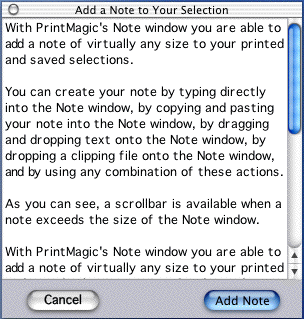
PrintMagic can automatically add your notes to both saved and printed selections. When added to your selections, the width of the note automatically matches the width of your saved and printed documents.
You can use drag-and-drop with the information within your notes to assist you in creating/organizing your notes or to create a clipping file. (When printing from either Safari or FireFox, a URL stamp automatically will be added to your note.)
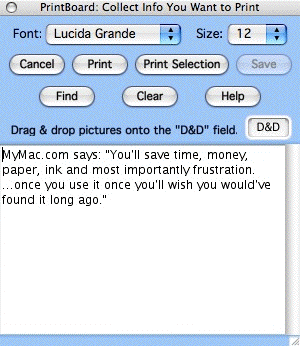
PrintMagic's Editor provides handy tools for working with the information that you have collected in PrintMagic's PrintBoard.
PrintMagic includes many addtioinal features to improve your productivity and to put you in complete control over what you print -- you can download the free and fully-functional demo to see for yourself the power and flexibility that's built into PrintMagic.
© 2002-2010 by Steve Becker. All rights reserved.