|
MacEase |
|
|
More Info on These and Other Highly Rated Utilities
Other Reviews Parallel to USB Printer Adapter QPS Que! M3 80 GB FireWire Drive The Orb Drive -- Is it Worth the Wait? Cool Accessories For Your PowerBook
General Tips PCI Cards --
An Easy and Inexpensive Way to Expand the Power of Your
Mac Powerful Protection For Your Mac |
by Steve Becker
Company: Epson America When evaluating all-in-one printers, first I evaluate each major component of the printer and then I examine the benefits (if any) that have resulted from integrating these components into a single unit. The Printer The print engine used by the RX500 is virtually identical to the engine that is used by Epson's 200 and 300 series photo printers. However, I've found the color fidelity in color phots produced by the RX500 to be better then that of the R200 which I evaluated last year -- I expect this probably is due to a difference in the drivers that are used by the two printers.
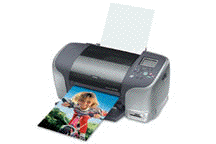
In addition to accepting a multitude of paper types and sizes, the 925 can print from either 4" or 8.3" roll paper (at the moment, this feature can't be used in OS X ). A paper cutter is built into the 925 which makes it easy to work with the roll paper. Also, the printer can print borderless photos in several popular sizes. The Stylus Photo 925 includes built-in slots for SmartMedia, Memory Sticks, CompactFlash cards, and Microdrives. Additionally, some digital cameras can be connected directly to the USB port that's on the back of the printer. On the top of the 925, there's a LCD display (there is an optional $79 color preview monitor) and a nicely designed set of controls that provide myriad options for working with your images directly from the printer -- this means there is no need to tie up (or even boot up) your computer when you want to print pictures. However, the 925 comes bundled with Epson's Film Factory and ArcSoft's PhotoImpressions. Since both of these programs provide many options for enhancing and editing your pictures (and because the optional Preview Monitor is very small), you'll probably want to use your computer for any serious photo editing work. Over the years, I've worked with more color ink jet printers than I care to count. While each successive generation of printer has gotten faster and produced better pictures than its predecessor, they all have had several serious deficiencies; this includes inconsistent color fidelity, drivers/software that was poor at correcting problems with the printers' output, and slow performance. I've spent more time testing the Epson Stylus Photo 925 than I usually spend when testing a printer. This is not because it has serious problems (it doesn't) or because it's very slow (it's not) or because it's difficult to use (it isn't). The reason is that it is such a pleasure to work with; the results are consistently excellent, it's reasonably quick (though I wouldn't describe any photo ink jet printer I've used as fast), and it's easy to use. Getting consistently very good to outstanding output from this printer encourages one to keep on playing with -- uh, testing -- it! It's really a pleasure to get very good -- even great -- looking pictures right off the bat without having to waste a great deal of time experimenting with ways to correct serious defects introduced into the images through the printing process. While the 925 does tend to produce prints that are slightly darker than their original images, color fidelity is quite good. And when printing on high quality matte or glossy paper, the small dots that make up the image are virtually invisible to the naked eye. Also, the undesirable banding that occurs with some ink jet printers is completely non-existent on the 925. Epson says that the version of its Micro Piezo technology that's used with the 925 combines a 4-picoliter minimum droplet size with the ability to use up to 8 different size droplets. According to Epson, this simultaneously enhances quality and speed. By the way, if you work in a small office, you'll be glad to know that the Stylus Photo 925 is fairly quiet. You should also know that like most ink jet printers, the 925 goes through its cartridges quite fast. (In my case, I'd estimate that my color cartridge would last for about 50 4x6 glossy color prints.) Most photo ink jet printers aren't known for doing a particularly good job when printing text. When printing to plain paper, this also is true for the 925. However, when printing text on high quality ink jet paper, even at only a moderate resolution, the Stylus Photo 925 does a very nice job. Another nice feature of the Stylus Photo 925 is that it supports both the P.I.M. (Print Image Matching) and Exif (Exchangeable Image File) technologies. The software included with the printer (and the included P.I.M. Plug-in for Adobe Photoshop and Photoshop Elements) is able to process image information that's embedded in your picture by most modern digital cameras. This information is used by printers that support the P.I.M. and Exif standards to automatically adjust the printer so it more faithfully reproduces the original image. The following table provides some sample times I observed when printing with the 925. I tested the printer with a G4/450 (AGP) that's running OS 9.0.4.
To my pleasant surprise, when I printed a 4x6 proof of an image onto Epson's Premium Bright White Paper at the printer's "Normal" setting for this type of paper, it took only 19 seconds -- and the quality of the picture was surprisingly good! I also found it surprising that in most cases there was no discernible difference in image quality when switching between Photo, Best Photo, and Photo RPM modes. In most cases, using the printer's high speed setting also did not noticeably affect the quality of the printed images. However, as you can see from the above table, these settings have a significant affect on print times. The moral is you'll frequently save time (and presumably ink) without sacrificing noticeable quality by using the "Photo" setting. With a SRP of about $250, the Epson Stylus Photo 925 is a little pricier than some good photo printers that don't include built-in card slots. However, while Epson's $50 rebate is in effect, the 925 is a bargain. Even without the rebate, I've not seen a photo ink jet printer at the 925's price point that can match its stunning photo print quality! Pros: Consistently produces excellent photo-quality prints; on high quality paper, text output is very good; is easy to use and versatile; is quiet; uses quick drying, water-resistant and fade-resistant ink; includes good software and printed manuals. Cons: Printer not as fast as claimed by Epson; images tend to be a little on the dark side; goes through ink very quickly.*  *PrintMagic and WebPrint Plus can more than double the life of your ink cartridges. © Steve Becker. All rights reserved. |